SATSHOW WEEK
March 23-26, 2026
Walter E. Washington Convention Center // Washington, DC
About SATShow
Experience
Exhibit & Sponsor
Plan Your Trip

March 23-26, 2026
Walter E. Washington Convention Center // Washington, DC
In the editor, add a new block by clicking or mousing over where you want to add new content. Click on the + icon. You can also click on the + icon in the top left if your cursor is positioned where you would like to insert the content. In the window that pops up select Columns. You may need to search for it.
Choose the number of columns/widths you want to add. Once you have added the columns, click inside one column and then click on the + icon. This time add a Card. Again, you may need to search. Fill in the contents on the right. Repeat for each column. Save.

This is a test card
Button

Lorem ipsum dolor sit amet, consectetur adipiscing elit, sed do eiusmod tempor incididunt ut labore et dolore magna aliqua.

Lorem ipsum dolor sit amet, consectetur adipiscing elit, sed do eiusmod tempor incididunt ut labore et dolore magna aliqua.

Lorem ipsum dolor sit amet, consectetur adipiscing elit, sed do eiusmod tempor incididunt ut labore et dolore magna aliqua.
Multiple column width options…

Lorem ipsum dolor sit amet, consectetur adipiscing elit, sed do eiusmod tempor incididunt ut labore et dolore magna aliqua.

Lorem ipsum dolor sit amet, consectetur adipiscing elit, sed do eiusmod tempor incididunt ut labore et dolore magna aliqua.
asdf asdf asdf asdf asdf asd fsdf
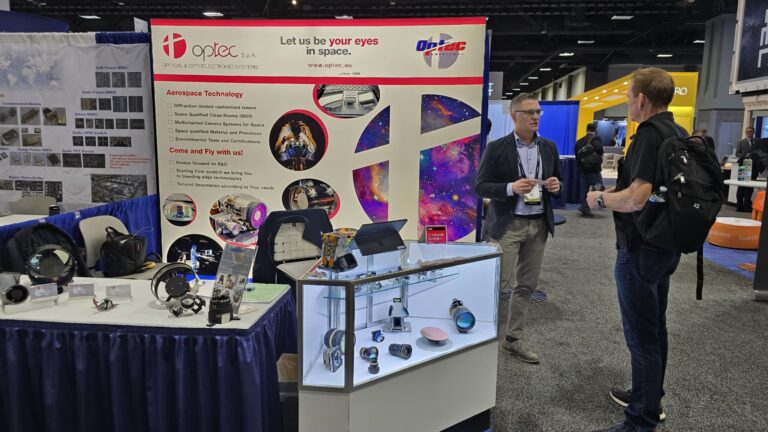
asdfs rfrdfgdfg sdfgsdfg dfg sdfg sdfgsdfgsdfg

This is a “Media & Text” pattern, which you can also find in the block insert popup. Could also probably be done from scratch using columns (insert image on left, text on right).
You can do things like style text and add other things also found in the block inserter.